Ambula Health
Connect Ambula Health to Reflekt Medical so your AI intake specialists can work directly with your EHR. Reflekt Medical uses Ambula to:
- Search and create patient records — when a new patient calls or messages, Reflekt Medical looks for an existing Ambula patient chart and creates or updates it as needed.
- Manage front-desk scheduling — appointment requests captured by your AI receptionist are written back to Ambula so your staff sees them where they already work.
The integration authenticates with a dedicated Ambula employee account that you create for Reflekt Medical. This keeps the integration's access scoped, auditable, and easy to revoke.
Prerequisites
Before you begin, make sure you have:
- An active Ambula Health account.
- Ambula admin access so you can create employees and assign permissions.
- A Reflekt Medical account.
Step 1: Create an Employee for Reflekt Medical
- Log in to Ambula as an administrator.
- Go to Admin → Employees and click New Employee.
- Fill in the account details:
- Name — use something recognizable, e.g.
Reflekt Medical. - Email — a dedicated address such as
[email protected]. This is the login Reflekt Medical will use. - Password / Confirm Password — generate a strong, unique password and store it securely. You will enter it in Reflekt Medical in Step 3.
- Name — use something recognizable, e.g.
Do not reuse a staff member's personal account. A dedicated employee keeps the integration's activity clearly attributed in Ambula's audit trail and lets you disable it without affecting your team.
Step 2: Configure Platforms, Branches, and Permissions
Configure the remaining fields exactly as shown below:
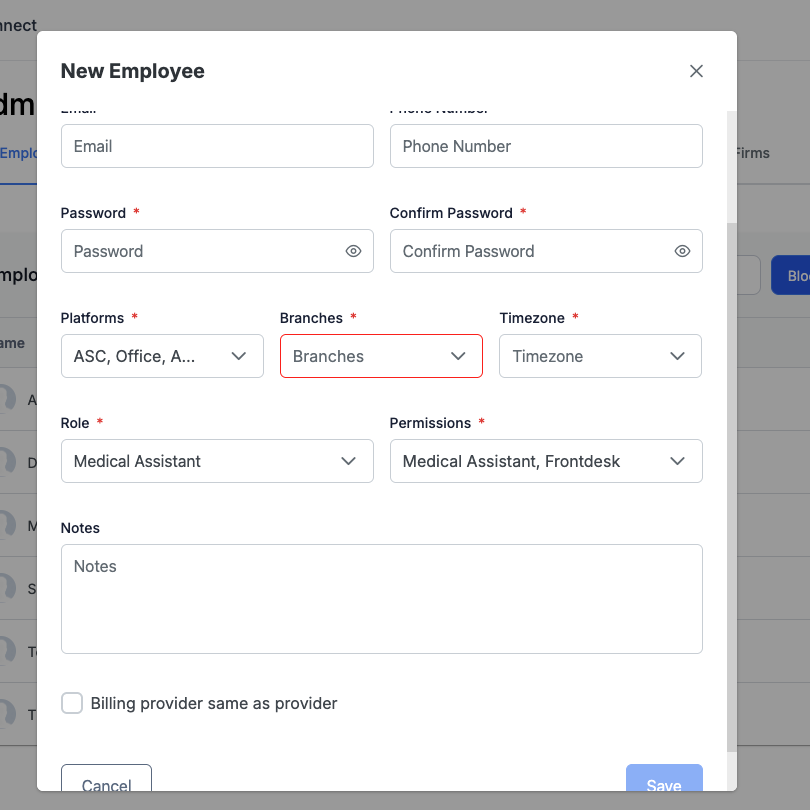
| Field | Value |
|---|---|
| Platforms | Select every platform your practice uses (e.g. ASC, Office). Reflekt Medical can only see patients and schedules on the platforms selected here. |
| Branches | Select all branches Reflekt Medical should handle intake for. This field is required — the form will not save while it is empty. |
| Timezone | Your practice's local timezone. This controls how appointment times sync between the two systems. |
| Role | Medical Assistant |
| Permissions | Medical Assistant and Frontdesk |
| Notes | Optional — e.g. "Reflekt Medical integration account". |
| Billing provider same as provider | Leave unchecked. The integration account is not a billing provider. |
Click Save to create the employee.
The Medical Assistant and Frontdesk permissions together give Reflekt Medical exactly what it needs: patient lookup and chart updates (Medical Assistant) plus scheduling and check-in workflows (Frontdesk). Do not grant broader roles such as Provider or Admin.
Step 3: Connect Ambula in Reflekt Medical
- Log in to your Reflekt Medical account.
- Navigate to Integrations.
- Find Ambula Health and click the Connect button.
- Enter the email and password of the employee account you created in Step 1.
- Ambula API URL (optional) — leave this field blank unless Ambula gave your practice a specific API URL. If they did, enter it exactly as provided.
- Click Connect to verify the credentials.
Once the credentials are verified, the integration is connected and Reflekt Medical begins syncing with the branches you selected.
Verify
Confirm the integration is working:
- Place a test call to your Reflekt Medical assistant number and ask to book an appointment.
- Confirm the patient record appears (or is updated) in Ambula on the expected branch.
- Confirm the appointment request shows up in the Ambula schedule.
If the sync does not appear, recheck that the correct Platforms and Branches are selected on the employee account and that the credentials in Reflekt Medical match.
Resources
If you need help validating your setup, contact [email protected].